Move your herd from CattleMax into Ranchr in two stages. First, export a spreadsheet from CattleMax. Then, import it on the Cattle page of the Ranchr web app.
Step 1: Export your data from CattleMax
-
On the CattleMax home page, select the Cattle tab on the left side of the page.
-
Near the top right of the page, select Export Data.
-
In the pop-up, select Download a copy of your account data.
-
Select Create account data export, then OK. CattleMax emails a download link to the address on your CattleMax account.
-
Open the link in the email to download the export.
-
Unzip the download. Move the animals file (animals.csv) somewhere easy to find, such as your desktop.
Step 2: Import the file into Ranchr
-
Sign in to the Ranchr web app and select the Cattle tab .
-
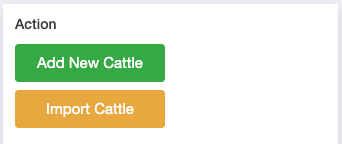
In the Action panel on the right, select Import Cattle.
-
Drag and drop the animals.csv file onto the page, or select choose a file and browse to it.
-
Select File includes headers in the top right.
-
Match each column. The Header From File column shows the headers from your CattleMax file. For each row, open the drop-down under Cattle Property and choose the matching Ranchr field. For example, match
ear_tagto ID/Tag.CattleMax header Ranchr property ear_tagID/Tag sexSex breed_idBreed purchased_from_idSeller purchase_pricePurchase Price purchase_datePurchase Date birth_weightBirth Weight weaning_weightWeaning Weight yearling_weightYearling Weight yearling_dateYearling Date -
When the columns are matched, select Review in the lower right, then Upload.
 .
.Your imported cattle now appear on the Cattle page. You can edit them like any other record.